
Assigning Custom Class Types
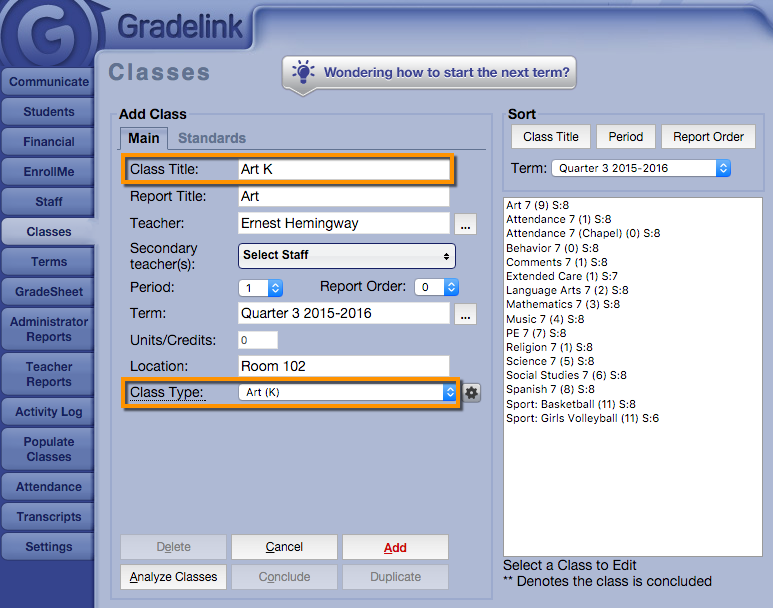
1. Click the Classes tab on the left sidebar.
2. Navigate to the “Class Type” drop-down menu and select the Sub-Grades you just set up. You will notice that the drop-down fields for Grade Scale, Sub-Grades, and Grad. Category will disappear. This is normal: Gradelink will no longer utilize those attributes now that you have set up a Custom Class based solely on Sub-Grades.
3. Click Save. When Teachers view this class via Gradelink, they will only be able to enter a single value underneath each field that was previously set up. You have successfully set up a Custom Class!