Creating Assignments
After setting up Assignment Types, select the Assignments tab on the left side of the page.
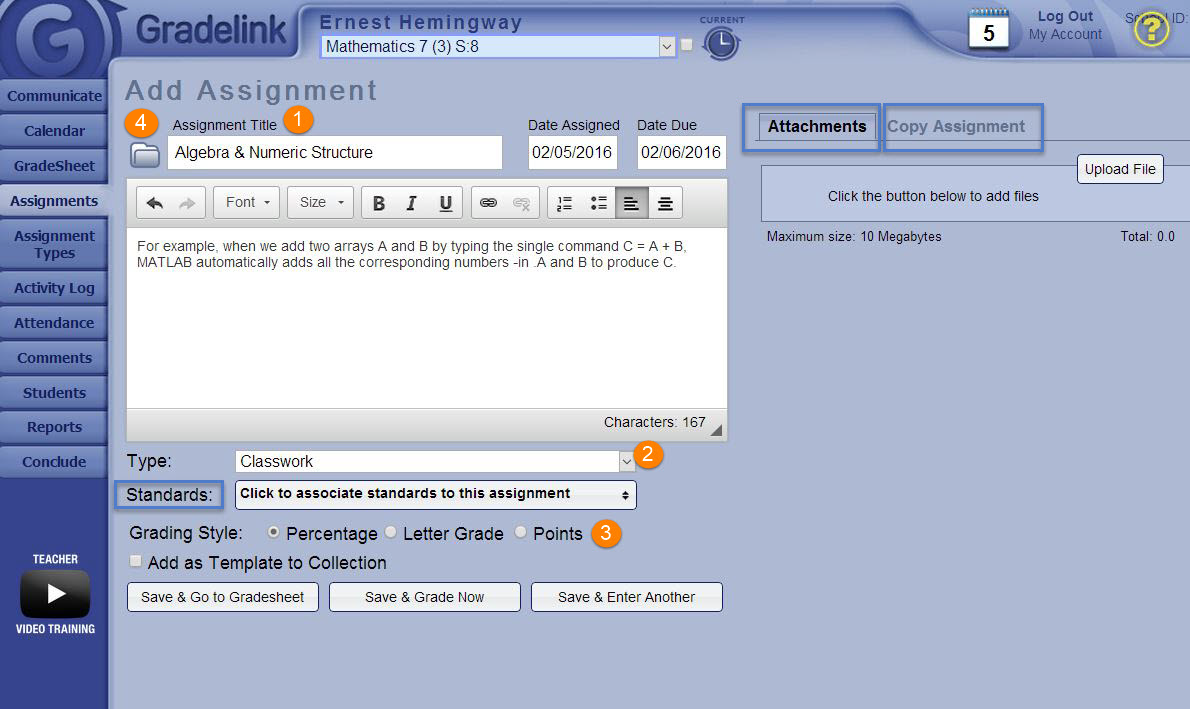
- Enter in an Assignment Title, as well as the Date Assigned and the Due Date.
- Select the Assignment Type under the Type drop-down menu.
- Select whether to grade the the assignment based on points, a strict letter grade, or a percentage by selecting the option at the bottom of the page.
- Click the folder to view Saved Template Collection.
- Other Options:
- Standards: Select which standard to associate with your assignments from the Standards drop-down menu. should your school follow a specific Standards program.
- Attachments: To insert files with this assignment that students can download via their Gradelink accounts, click on the Upload File button to select the files.
- Copy Assignment: This option allows an assignment to be copied from one class to another.
- To save the assignment to the Assignments Collection, click in the box next to "Add as Template to Collection."
- Standards: Select which standard to associate with your assignments from the Standards drop-down menu. should your school follow a specific Standards program.
- Attachments: To insert files with this assignment that students can download via their Gradelink accounts, click on the Upload File button to select the files.
- Copy Assignment: This option allows an assignment to be copied from one class to another.
- To save the assignment to the Assignments Collection, click in the box next to "Add as Template to Collection."