
Customizing Drop-down Options on the Prospects Workflow
Note: This article is about customizing the options that appear in various drop-down menus in the Prospects Workflow. If you would like to learn about customizing the Prospective Student Form, please click here .
Using the Coding menu, located in the Students tab, Administrators can create their own default values for the Tags, Next Follow-Up Action, and Closing Disposition menus that appear in the Prospects Workflow.
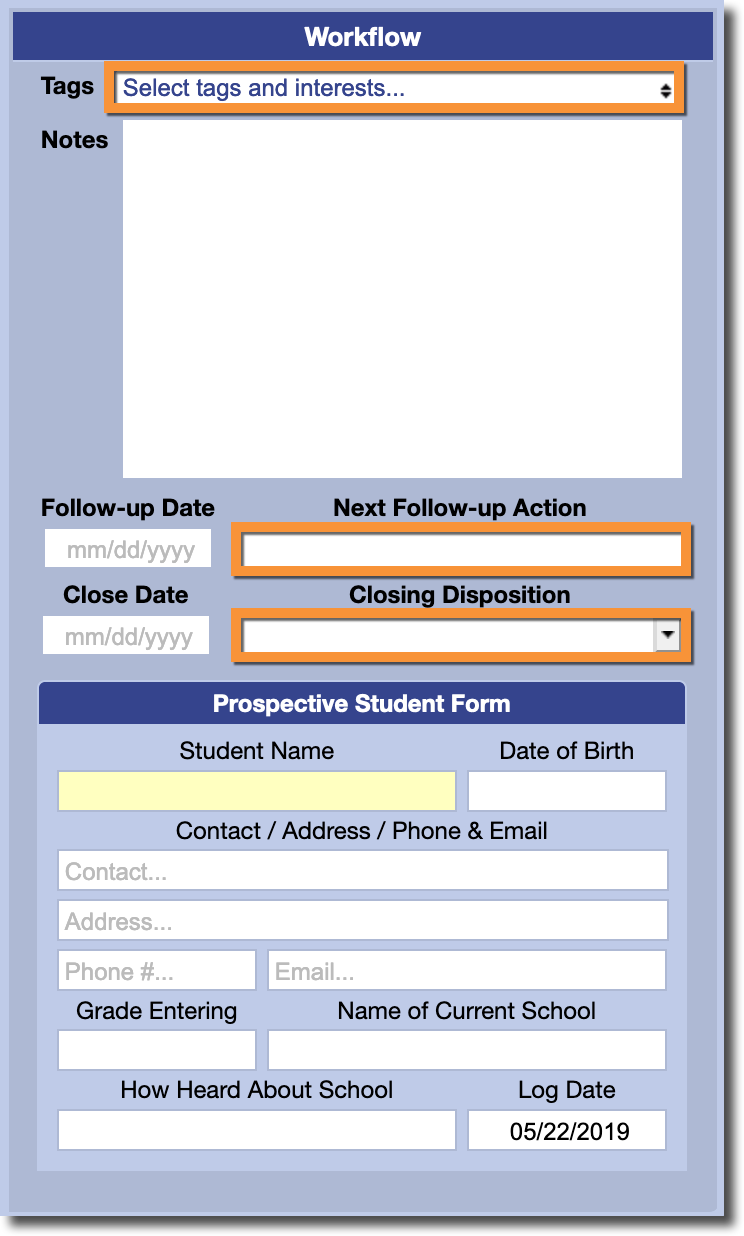
To customize the options that appear in each menu:
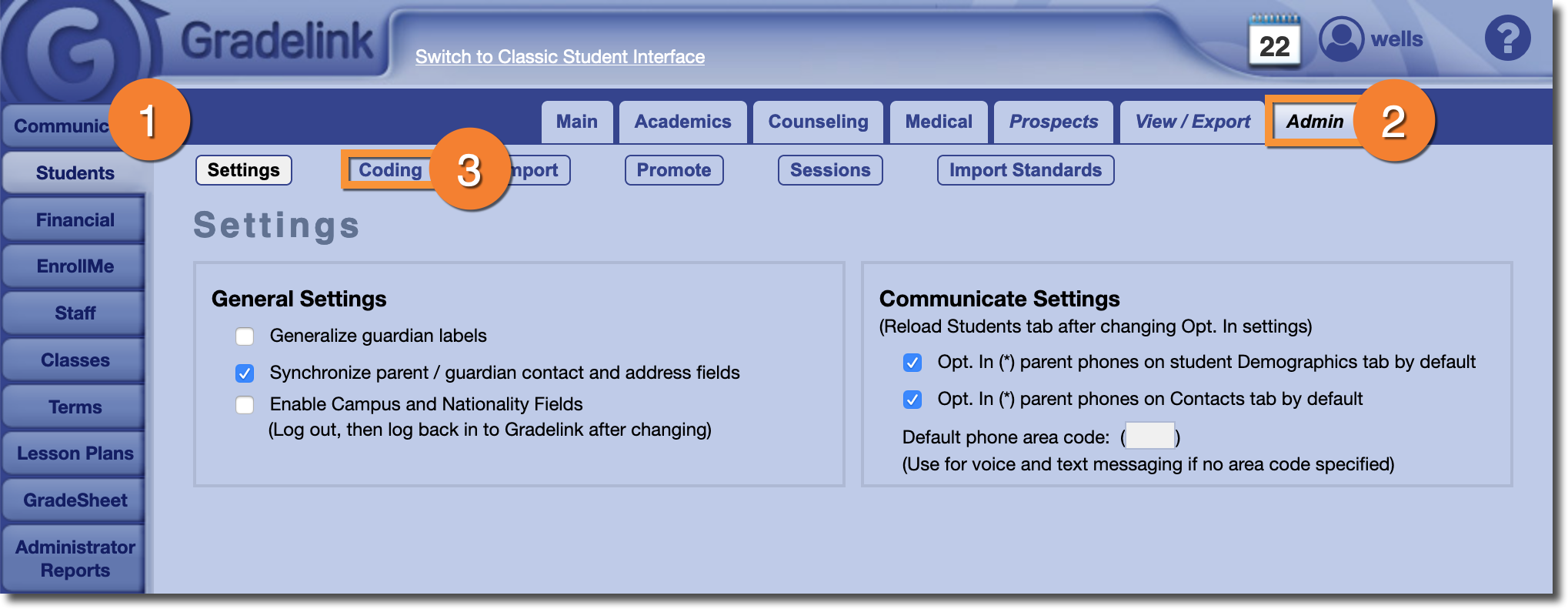
- Click on the Students tab
- Click on the Admin sub-tab
- Select Coding from the top left
To add a new entry to a particular menu, select it from the list on the left, hit the Add button, and then fill out the fields on the right. Don't forget to hit Save.
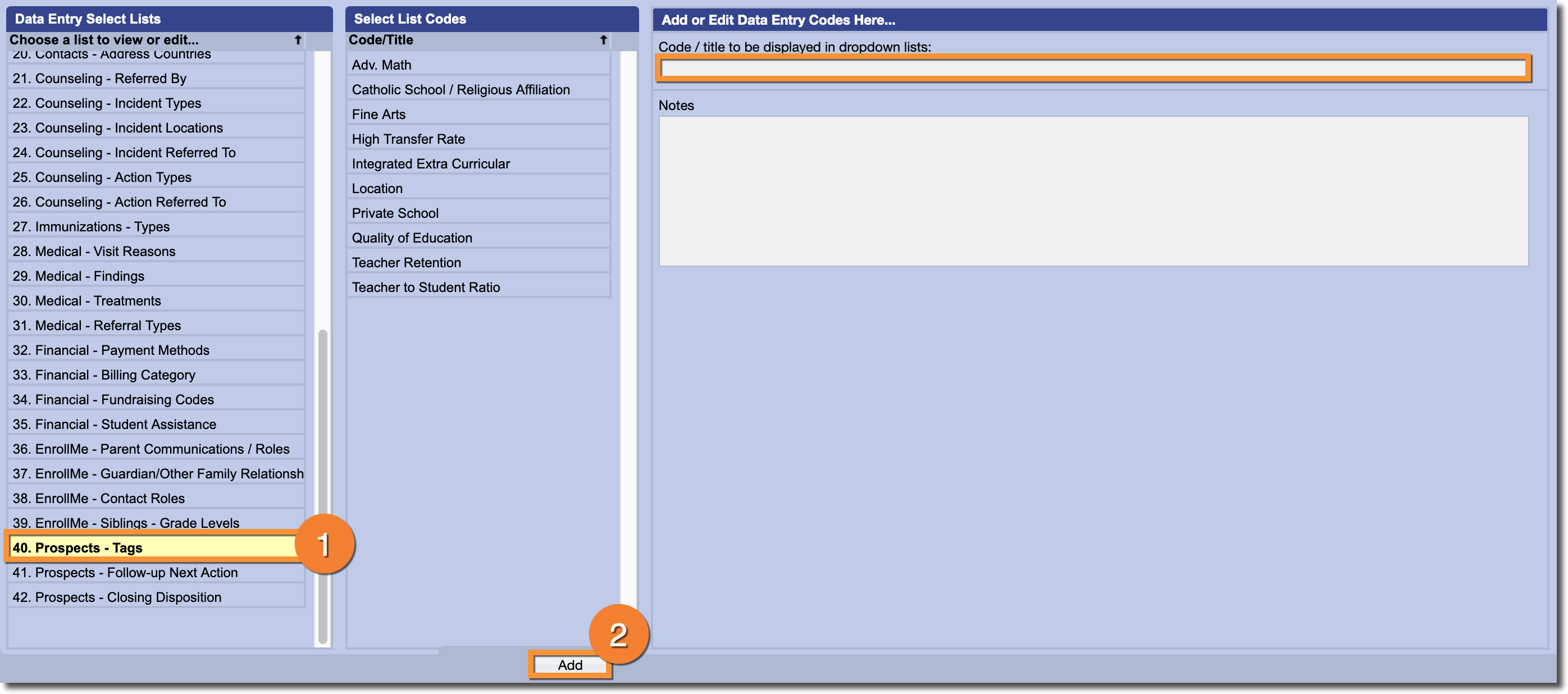
Note: Some of the coding lists may be blank when you select them. However, this does not mean the list is empty. If a coding menu appears blank, that means that Gradelink is using default values. As soon as you start adding new values, they will appear normally.
