
How do I add tests or awards?
Scenario:
1. How can I add student awards?
2. Where do I record student scores on tests like the SAT or ACT?
Solution:
Tests and Awards can be added to student accounts using the Academics section of the Students tab.
To get started:
- Click on the Students tab
- Select the student who you would like to add a test or award to
- Click on the Academics sub-tab
- Select Tests / Awards / Degrees
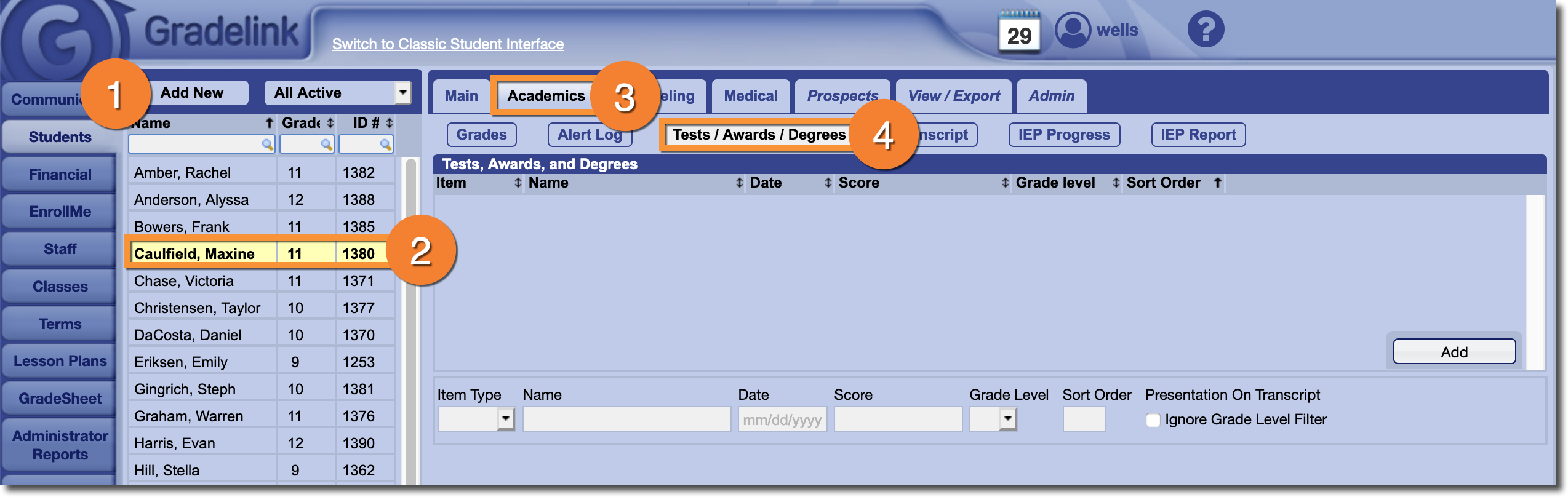
To add a test or award:
- Select the appropriate Item Type
- Enter the Name of the test or award
- Enter additional information such as Date, Score, and Grade Level
- Optionally, enter a Sort Order which will tell Gradelink to display tests or awards in a specific order regardless of name and date.
- Click Save
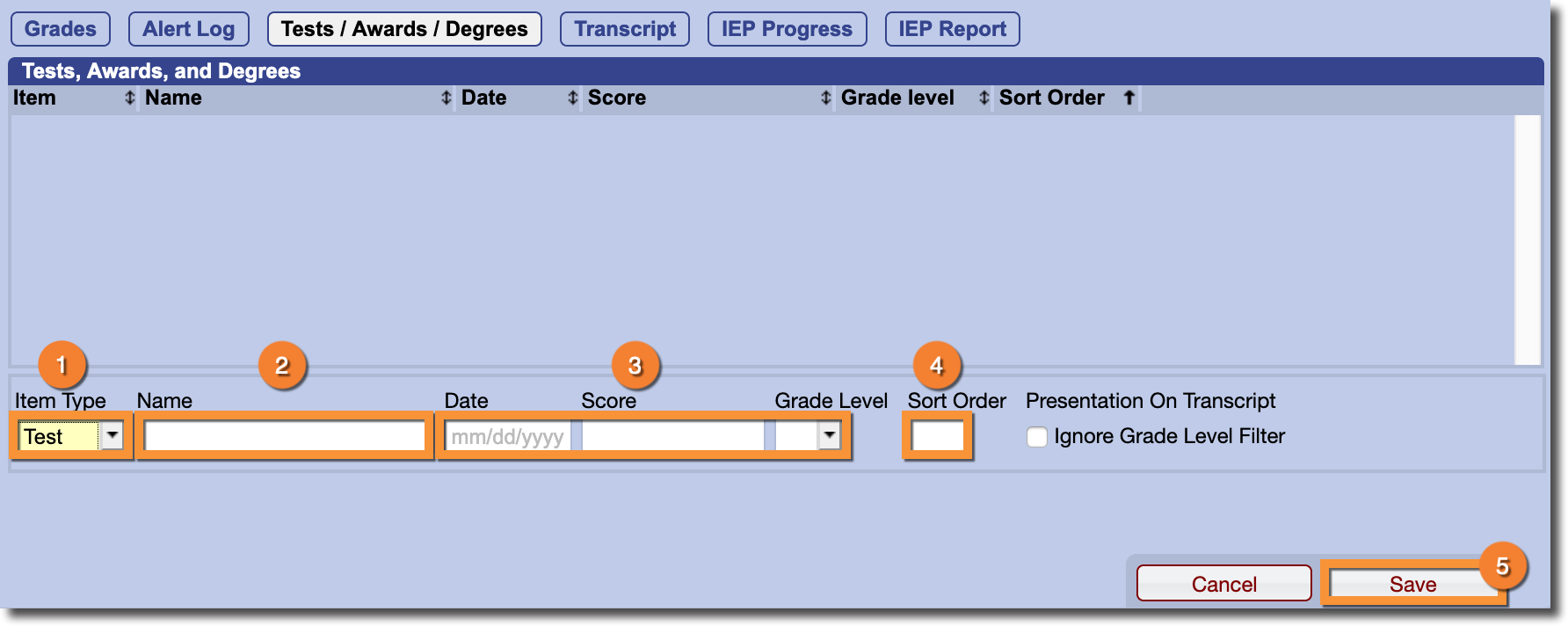
Note: If you do not include a grade level when adding a test or award, it will always appear on the transcript. If you do include the grade level, then the test or award will appear on the transcript only if the grade level is within the range set in the Transcript Options page OR if the setting "Ignore Grade Level Filter" is active.