
How to add Final Grades
Some schools choose to avoid using Assignments and instead simply enter a single "Final Grade" for each academic term.
If you would like to grade using "Final Grades", you'll need to do three things:
- Create a "Final Grade" Assignment Type.
- Create a "Final Grade" Assignment.
- Enter final grades.
Step 1: Create a "Final Grade" Assignment Type
Assignment Types allocate a specific percentages of the overall class grade to specific types of assignments. However, if you only want to enter a "Final Grade", then you only need to set up one assignment type and give it 100% of the class weight.
1. As a Teacher, click on the "Assignment Types" tab on the left side of the page.
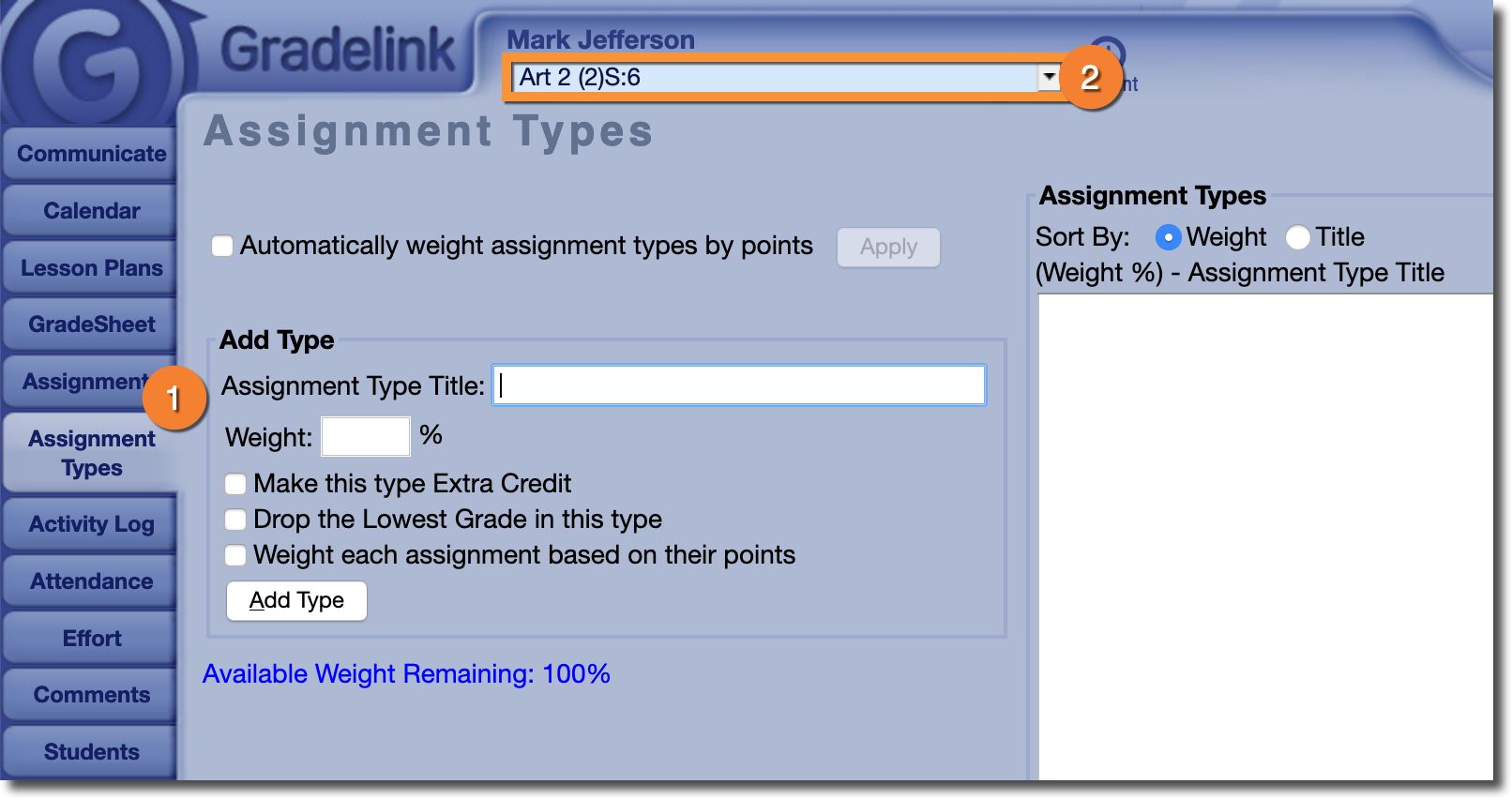
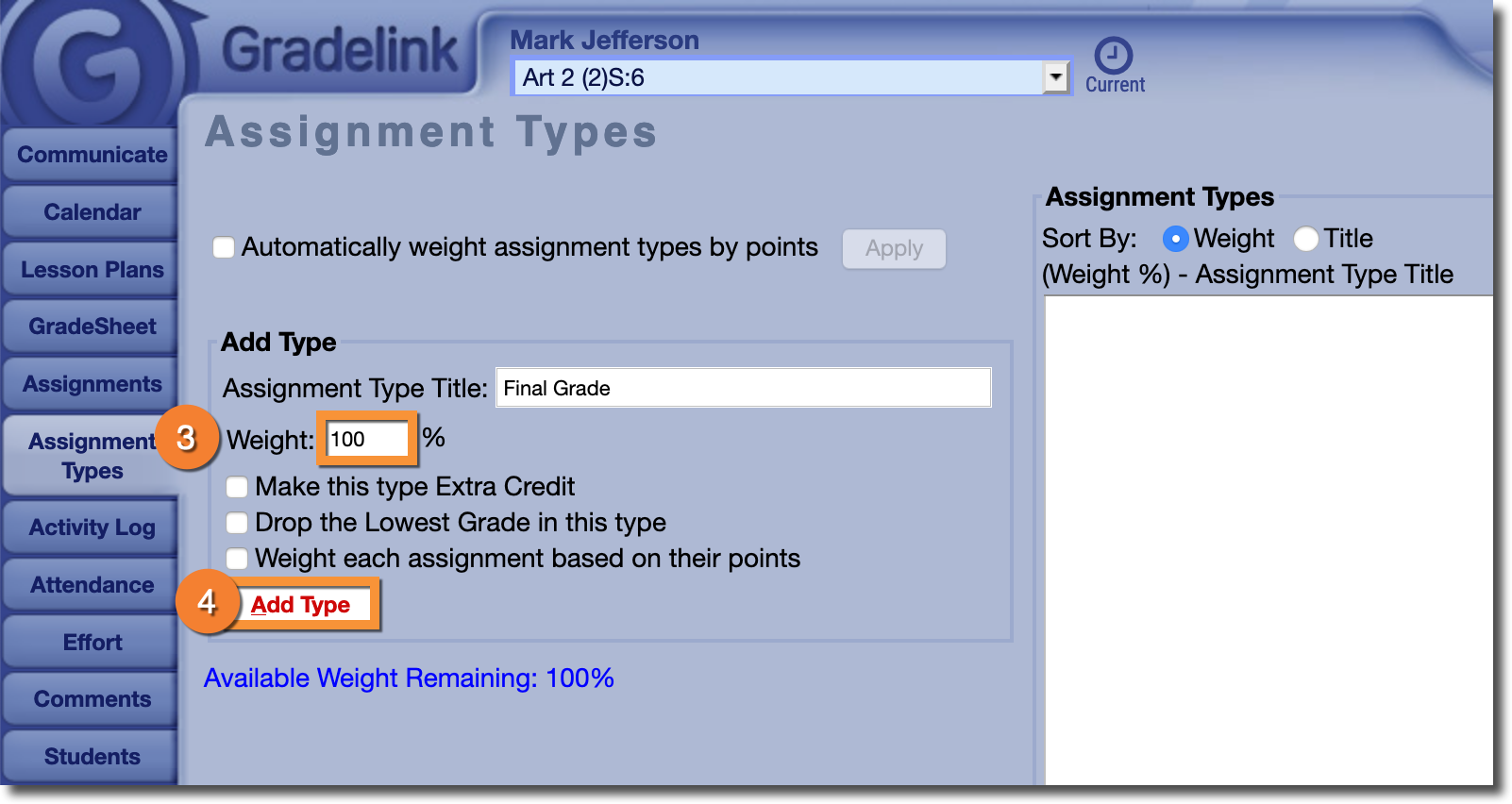
3. Create a new Assignment type and make sure to set the weight to 100%.
4. Hit "Add Type" when you're done.
Step 2: Create a "Final Grade" Assignment
Once you have set up your "Final Grade" Assignment Type, you'll need to make a "Final Grade" Assignment.
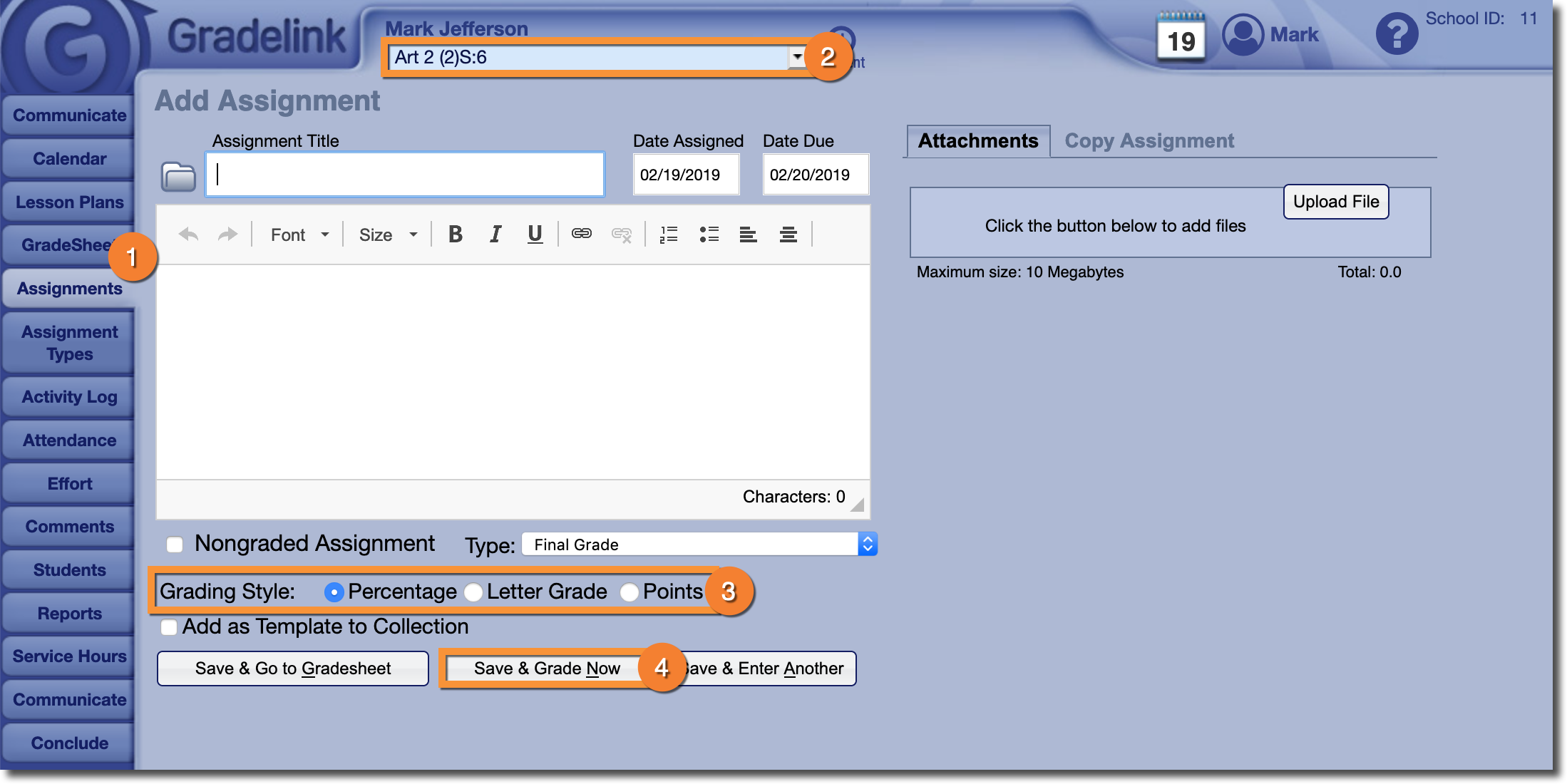
1. Click on the "Assignments" tab.
2. Make sure you have the correct class selected.
3. When entering details about the assignment, make sure to choose a “Grading Style” that reflects how you want to record the final grade.
4. Click “Save and Grade Now".
Step 3: Enter Final Grades
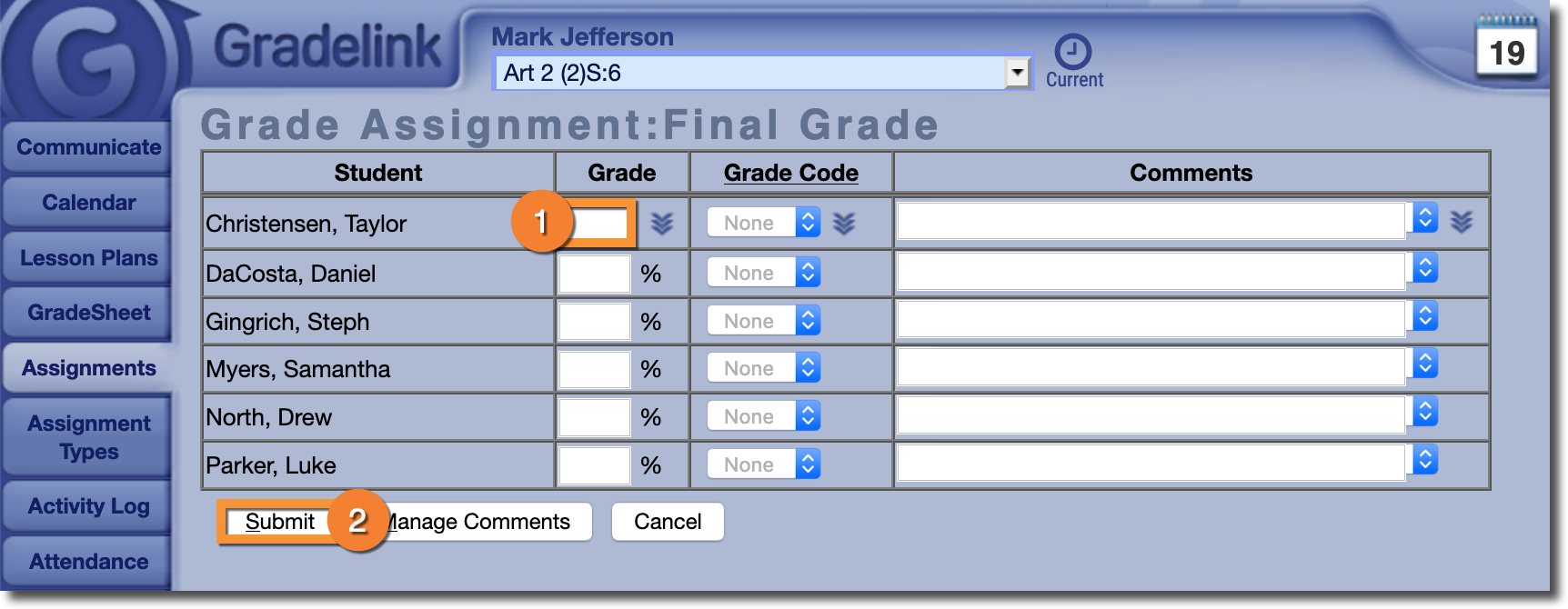
Not all students receive a normal grade, and if that is the case then you can enter either a Grade Code or an Alternative Grade in place of the final grade.
Please read the Grade Codes and Alternative Grades articles if you would like more information about them.