
How to Customize Daily Attendance for Virtual Learning

This tutorial will show you how to add an option to mark a student Present in-person or Present virtually to your Daily Attendance Settings.
Add an option for Present In-Person
- Log in using a Full Admin account.
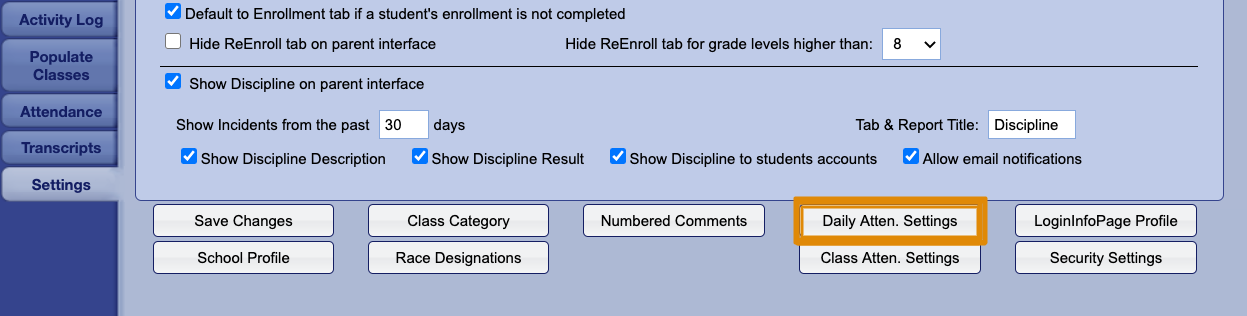
- Go to the Settings tab then Daily Atten. Settings
- Rename "Present" to "Present In-Person" following the example below.
(Before)
(After)
How to Add an option for Present Virtually
- Add a new row at the end for "Present Virtually" following the example below.

Press the Save Changes button

How To Take Attendance
Take attendance as you normally would.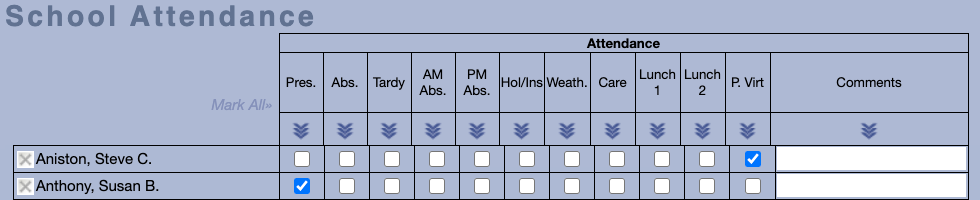
- Go to the Attendance tab using either the Teacher, Admin Full or Admin limited login.
- When taking attendance, Gradelink marks all students as "Present In-Person". If a student is Present Virtually you need to select it.
Attendance Reporting
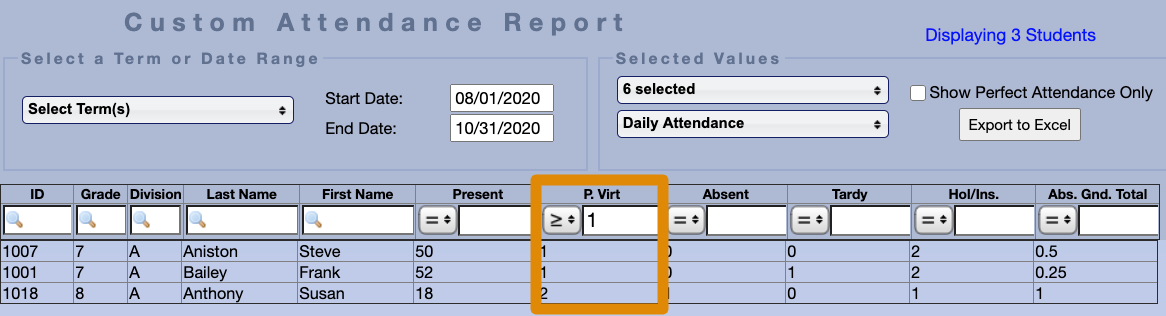
You can use any of the attendance reports to track Present in-person vs Present Virtually. Below are a few examples.
Custom Attendance Report
- Log in as a Full Admin or Admin Limited.
- Go to Admin Reports then Custom Attendance Report
- Learn more about the Custom Attendance Report.
Attendance Totals Report
- Log in as a Teacher and go to the Reports or Login as a Full Admin or Admin Limited and go to Teacher Reports tab.

- Select an attendance class using the drop down menu from the top center.
- Click the Attendance Totals button

Attendance Sheet Report
- Log in as a Teacher and go to the Reports or Login as a Full Admin or Admin Limited and go to Teacher Reports tab.

- Select an attendance class using the drop down menu from the top center.
- Click the Attendance Sheet button.
Learn more about the Attendance Sheet Report